AutoCAD MAP 2012 sees a major change from previous versions in the way Coordinate Systems are defined. In terms of AutoChart, these changes have no effect in working with pre-existing definitions, you still choose the Projection CS and the Geographic CS in the same way as always, however, if you need to define a new coordinate system in MAP, the process can now seem quite unfamiliar.
In this Blog post, I hope to give a brief overview of what’s involved in working with the new Coordinate Systems dialogs to create a UTM Zone 47N Projection based on the ‘Batavia’ datum.
In this Blog post, I hope to give a brief overview of what’s involved in working with the new Coordinate Systems dialogs to create a UTM Zone 47N Projection based on the ‘Batavia’ datum.
| Spheroid | Bessel 1841 |
| Datum | Batavia |
| Semi-major axis (a) | 6 377 397.155 m |
| Semi-minor axis (b) | 6 356 078.963 m |
| Inverse flattening (1/f) | 299.1528128 |
| Projection Parameters | |
| Projection | Universal Transverse Mercator (UTM) |
| Zone | 47 North |
| Latitude of Origin | 00° 00’ 00” N (Equator) |
| Central Meridian | 99° 00’ 00” E |
| Scale Factor at Origin | 0.9996 |
| False Easting at Origin | 500 000m |
| False Northing at Origin | 0 m |
| Unit of Measurement | International Metres |
| Datum Transformation From WGS84 to Local Datum | |
| DX | plus (+) 377.00 m |
| DY | minus (-) 681.00m |
| DZ | plus (+) 50.00m |
| Example Transformation | |
| WGS-84 | Batavia |
| Lat : 5° 17’ 58.94133” N | Lat : 5° 18’ 02.34112” N |
| Long : 97° 19’ 46.85008” E | Long : 97° 19’ 37.52676” E |
| Easting : 314 898.576 m | Easting : 314 633.300 m |
| Northing : 586 042.752 m | Northing : 586 091.720 m |
When faced with working with an unfamiliar coordinate system, we have to start by confirming whether the coordinate system already exists within the AutoCAD MAP definitions.
The easiest way to do this is to start the command called Library (MapCSLibrary)

Now type in the name of the Datum in the search (e.g. “Batavia”) and see which Projections are available which use this datum name:

For a start we see there is no UTM 47N available but there is a datum (Batavia_1) and a datum transformation (Autodesk now calls these "geodetic transformations") (Batavia_1_to_WGS84) that may be useful. If we click on these and select view we can check the values of the datum and the transformation.
Datum:

Transformation (Analytical Formula Transformation Page)

This shows us that the Ellipsoid used within the Datum definition is correct and the transformation parameters match the requirements.
Now we have to make a coordinate system using this Datum. You can leave this command and start the Create Coordinate system command but actually it is probably easier to choose one of the existing UTM coordinate systems and use Duplicate.
Once the new coordinate system has now been created we must change the values, so use the Edit button in the form and change the Code, Description and values on each page to the correct values.


Once all of the various parameters have been set up, choose Save.
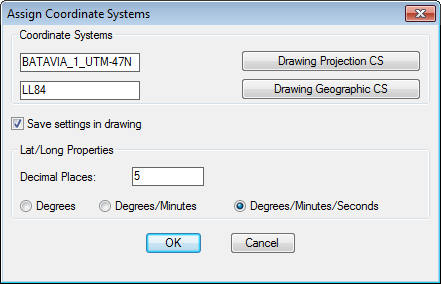
Now you just need to check the definition woks correctly by using the AutoChart commands.
Start the point command – type in the Batavia E/N. Change the point type and zoom extents.

Transformation (Analytical Formula Transformation Page)

This shows us that the Ellipsoid used within the Datum definition is correct and the transformation parameters match the requirements.
Now we have to make a coordinate system using this Datum. You can leave this command and start the Create Coordinate system command but actually it is probably easier to choose one of the existing UTM coordinate systems and use Duplicate.
Once the new coordinate system has now been created we must change the values, so use the Edit button in the form and change the Code, Description and values on each page to the correct values.


Once all of the various parameters have been set up, choose Save.
Now you just need to check the definition woks correctly by using the AutoChart commands.
Start the point command – type in the Batavia E/N. Change the point type and zoom extents.
Start the AutoChart|Inquiry|Point Id|Single command

Snap to the node of the point and the LL84 Lat/Longs will be displayed and can be checked against the supplied values.
If a suitable Datum definition doesn't already exist, a new Datum can be created in a similar way to creating a Projection. Once the Datum has been defined, a Geodetic Transformation can then be created to specify the Datum Shift parameters to or from WGS84.
Snap to the node of the point and the LL84 Lat/Longs will be displayed and can be checked against the supplied values.
If a suitable Datum definition doesn't already exist, a new Datum can be created in a similar way to creating a Projection. Once the Datum has been defined, a Geodetic Transformation can then be created to specify the Datum Shift parameters to or from WGS84.
